Excel skills
Working with data
|
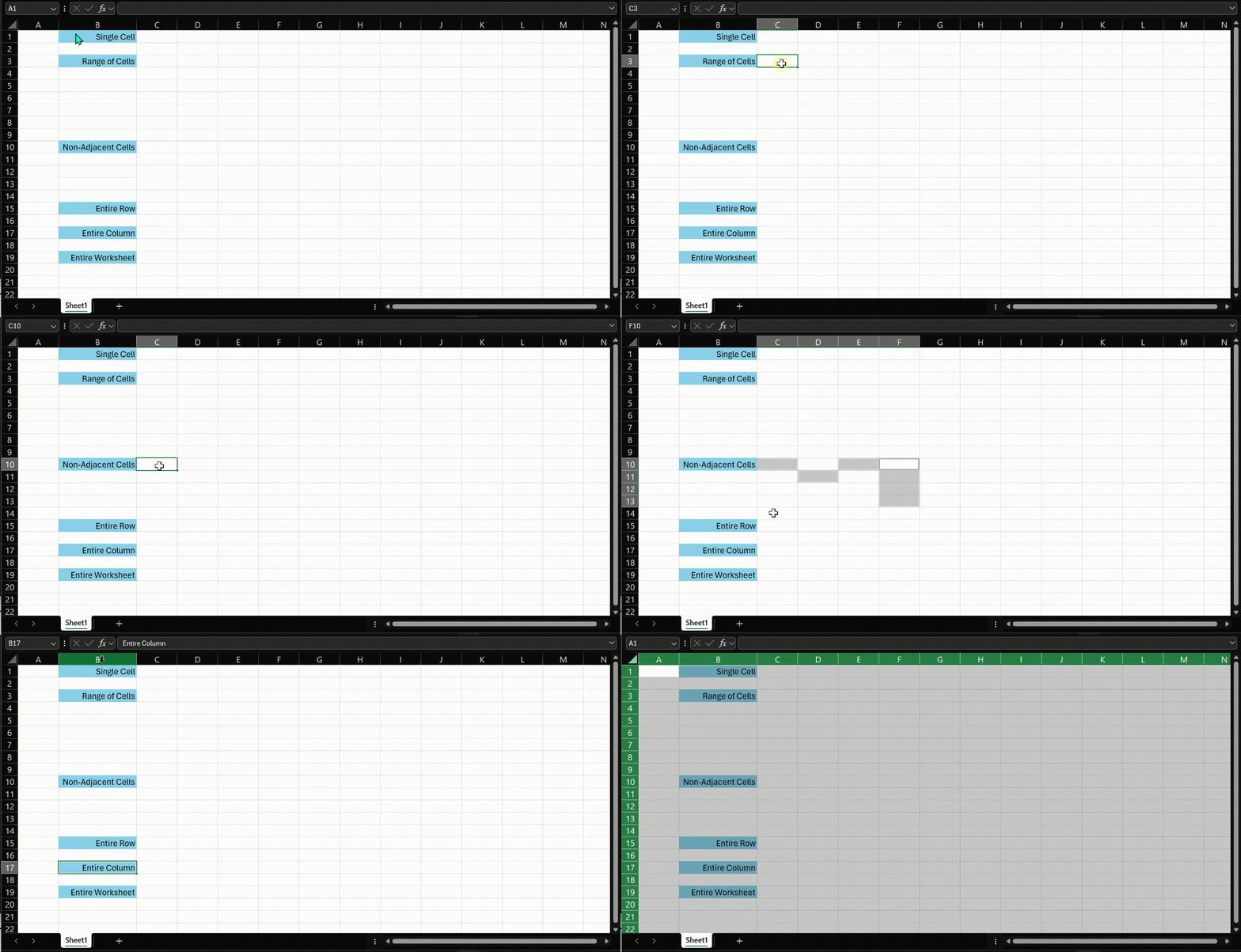
Manipulating data in Excel involves a range of powerful tools and functions that allow you to efficiently organise, analyse and modify your data. Understanding these basic techniques will help you handle and transform your data with ease, making your spreadsheet tasks more effective and accurate. Selecting cellsSelecting cells is a fundamental task that enables you to perform various operations, such as formatting, entering data or applying functions. Here’s a brief overview:
Used with permission from Microsoft. Fill handleThe fill handle is a small square at the bottom-right corner of a selected cell or range. It allows you to quickly copy data or extend a series of data across adjacent cells. To use it, click and drag the fill handle over the cells where you want to copy or extend the data. For example, dragging the fill handle with numbers like ‘1’ and ‘2’ will auto-fill the series as ‘3’, ‘4’, and so on. It can also be used to replicate formulas, dates or patterns, streamlining repetitive tasks and ensuring consistency across your worksheet. 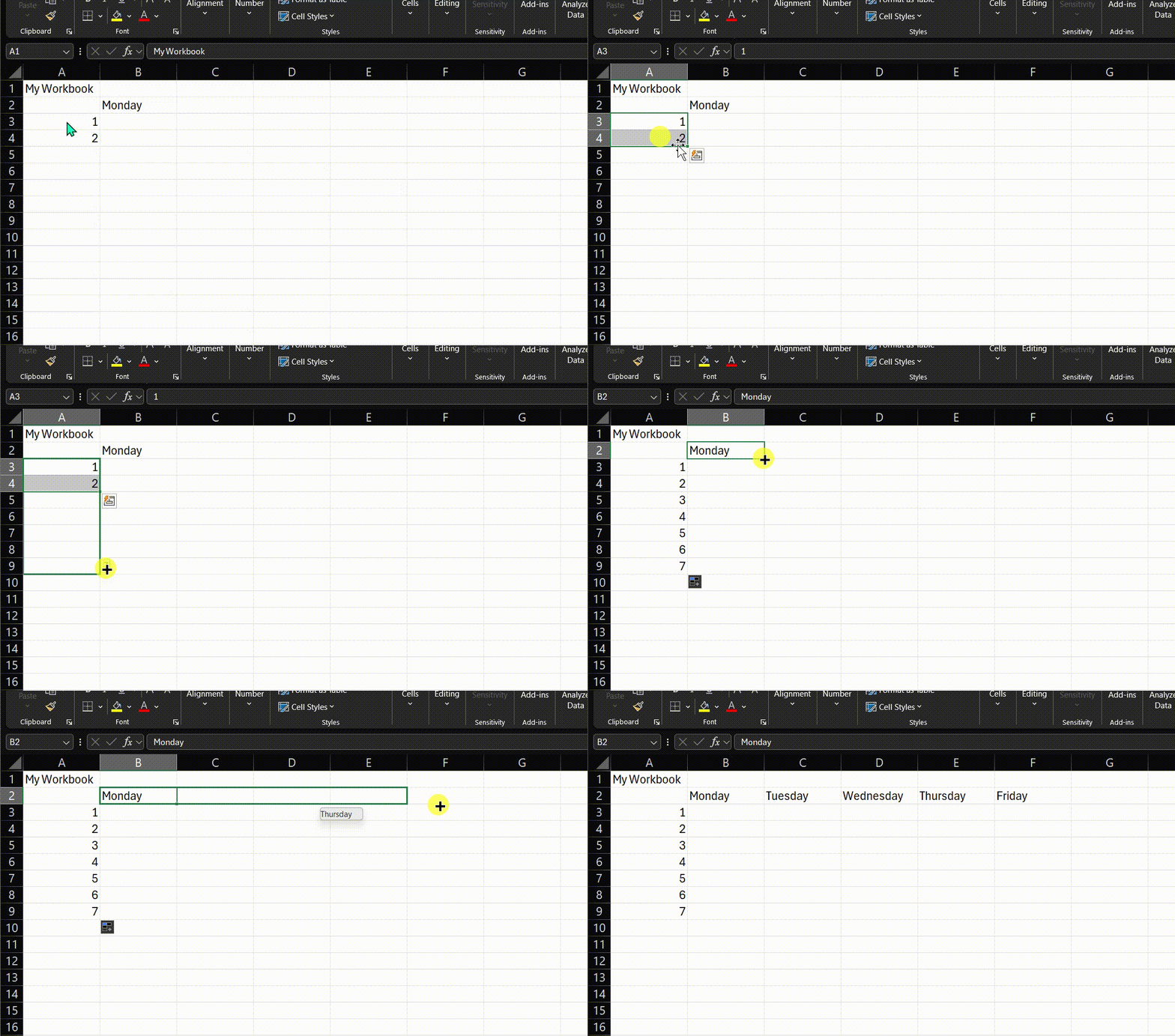
Used with permission from Microsoft. Cell referencesIn Excel, absolute and relative references are crucial for understanding how formulas adjust when copied to other cells. Relative reference: Adjusts automatically when you copy a formula to another cell. It is the default type of reference in Excel. In the formula =A1+B1, if you copy this formula from cell C1 to cell D1, it will change to =B1+C1, adjusting based on the relative position of the cells. Absolute reference: An absolute reference does not change when you copy a formula to another cell. It is denoted by dollar signs ($) before the column letter and row number. In the formula =$A$1+B1, the $A$1 reference remains fixed, regardless of where the formula is copied. If copied from C1 to D1, the formula remains =$A$1+B2, with $A$1 staying constant. SortingSorting in Excel is a fundamental feature that allows you to organise your data in a specific order, making it easier to analyse and interpret. You will find the sort button on the Home tab in the Editing section or the Data tab. You can sort data alphabetically, numerically or by date in either ascending or descending order. Sorting can be applied to a single column or across multiple columns to rearrange your data according to your needs. This tool is particularly useful for organising lists, ranking items, or finding information quickly within large datasets. FilteringFiltering in Excel is a powerful tool that allows you to display only the data that meets specific criteria, hiding the rest. This makes it easier to focus on specific information within a large dataset. You can apply filters to one or more columns to view subsets of your data, such as rows that contain a particular value, fall within a date range or meet a specific condition. Filtering helps you quickly isolate the data you need, making analysis more efficient and targeted. NamesIn Excel, Names are a feature that allows you to assign a meaningful name to a specific cell or range of cells. This makes formulas easier to understand and manage because, instead of referencing cells by their coordinates (like A1:A10), you can use a descriptive name (like SalesData). You can create and manage these names using the Name box near the Formula Bar or through the Name manager found under the ‘Formulas’ tab. Using names in your formulas and calculations improves clarity, especially when working with complex spreadsheets. |