Excel skills
Excel formulas
|
Formulas can contain a combination of relative and absolute references. Mastering the use of these can enable you to manipulate data efficiently. Formulas in Excel are powerful tools that allow you to perform calculations, analyse data and automate tasks within your worksheets. By combining numbers, cell references and built-in functions, formulas help you to dynamically compute results based on the data in your cells. Whether you need to sum a range of values, find an average or perform more complex operations, Excel's formulas provide a flexible way to manipulate and process your data. Manual formula creationYou can manually create a formula by entering an equals sign into a cell or the formula bar and then creating the formula. This can be efficient when creating basic maths equations or using functions you are familiar with. 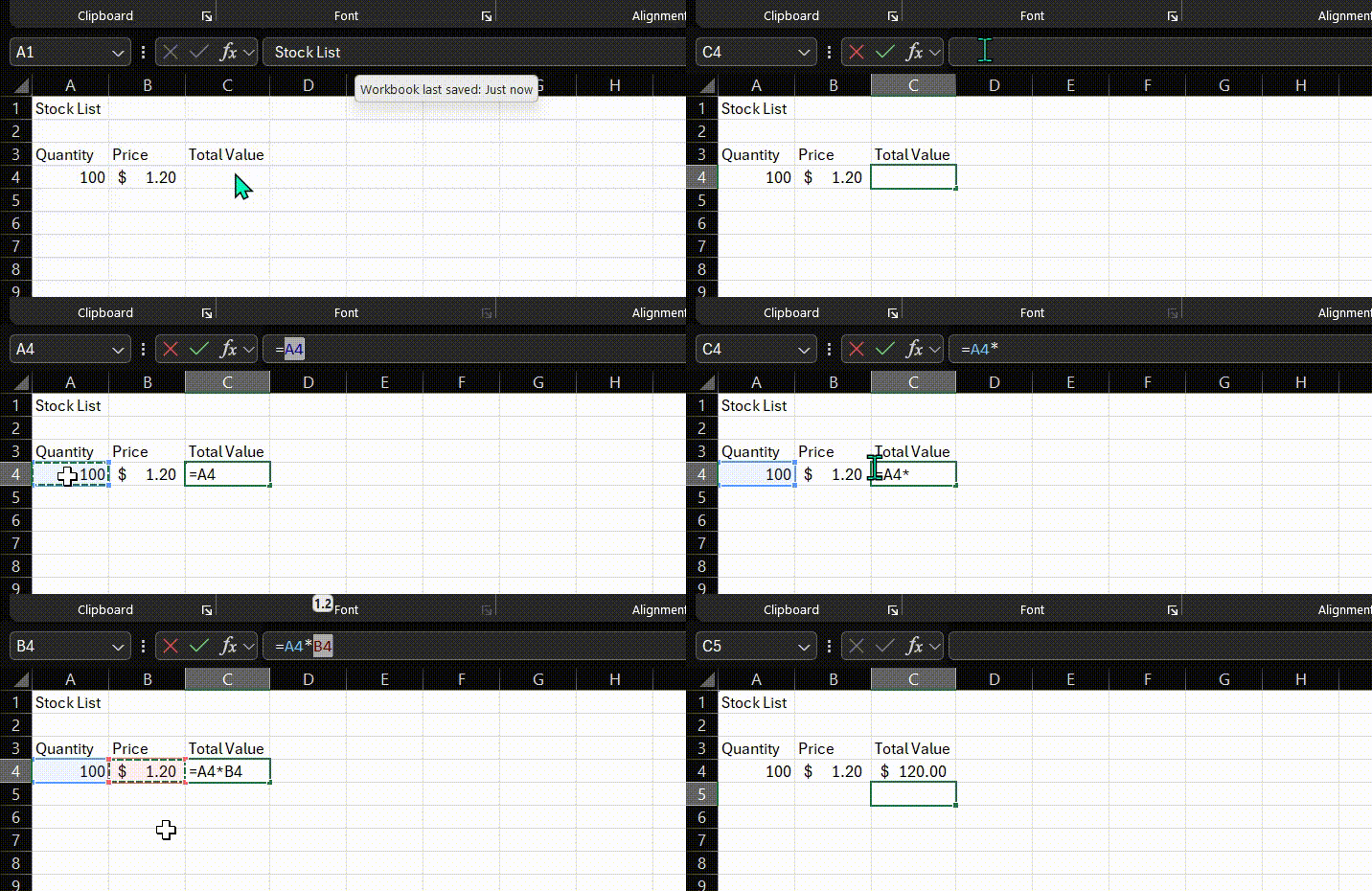
Used with permission from Microsoft. Autosum
Used with permission from Microsoft. You can use the autosum button to create a formula. By default, this will add up a range of cells. You can also access a list of common functions or enter the insert function wizard by clicking the down arrow. The autosum button is located in the Editing section of the Home tab as well as the Formula tab. 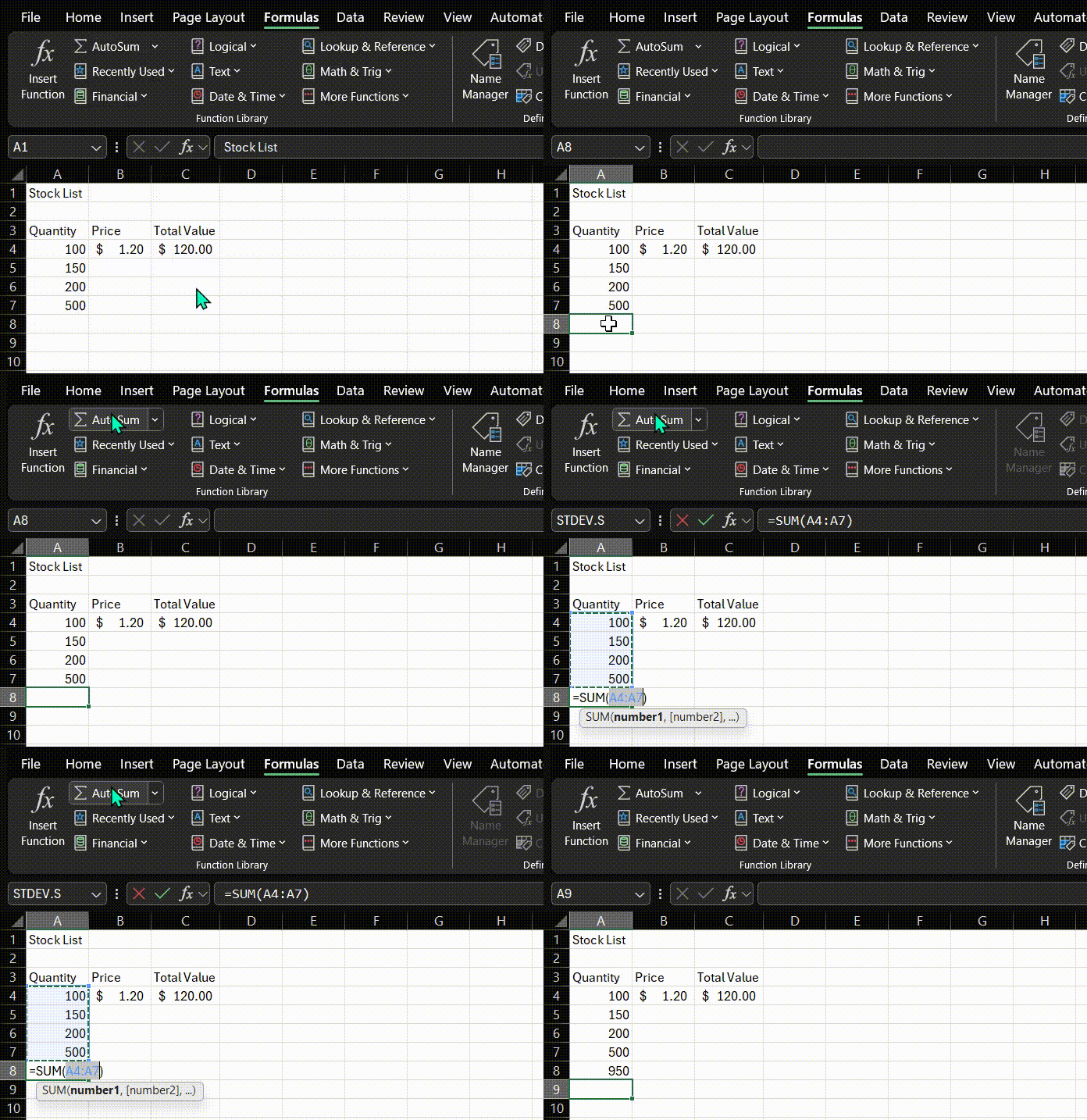
Used with permission from Microsoft. FunctionsThere are hundreds of functions in Excel which are grouped into categories. They can be accessed via the autosum button – the function button located on the formula bar or the Formula tab in the ribbon. 
Used with permission from Microsoft. The Insert function wizard will allow you to browse the functions by category, providing details of each function. Once you select a function, you will get a detailed wizard for that function that allows you to enter the required parameters and view the values returned as you build the formula. We will explore Functions further in the next page. 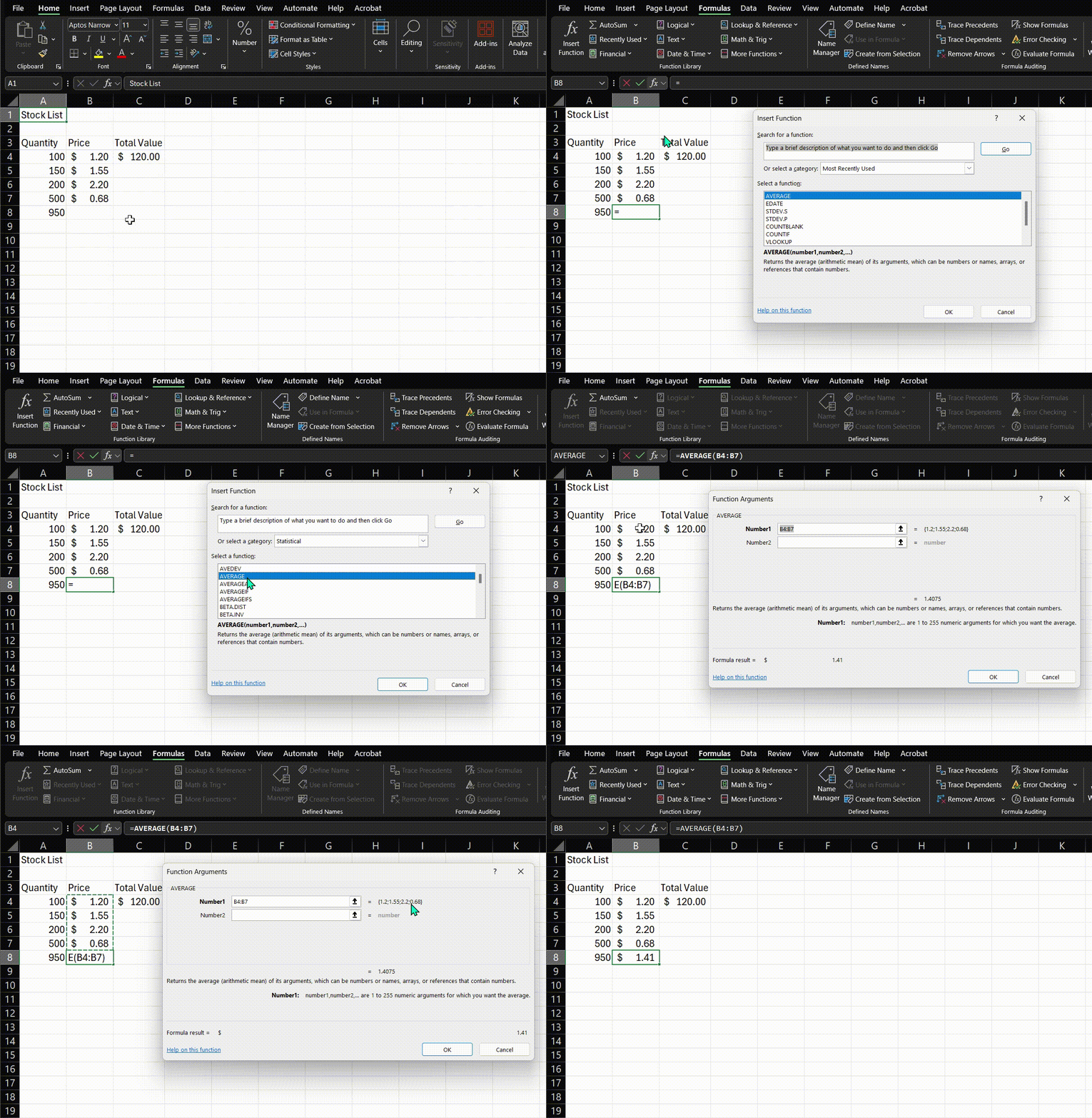
Used with permission from Microsoft. |